
CamArt AI
Pick the right AI video generator or image model for each shot without switching platforms: open Seedance, Wan, Kling, Veo, Vidu, MiniMax, Runway, Grok, GPT Image, Nano Banana, Seedream, Qwen Image, FLUX, or Z Image, review sample outputs, and generate in the same place.
Listing not yet reviewed by our editors · How we check
Overview
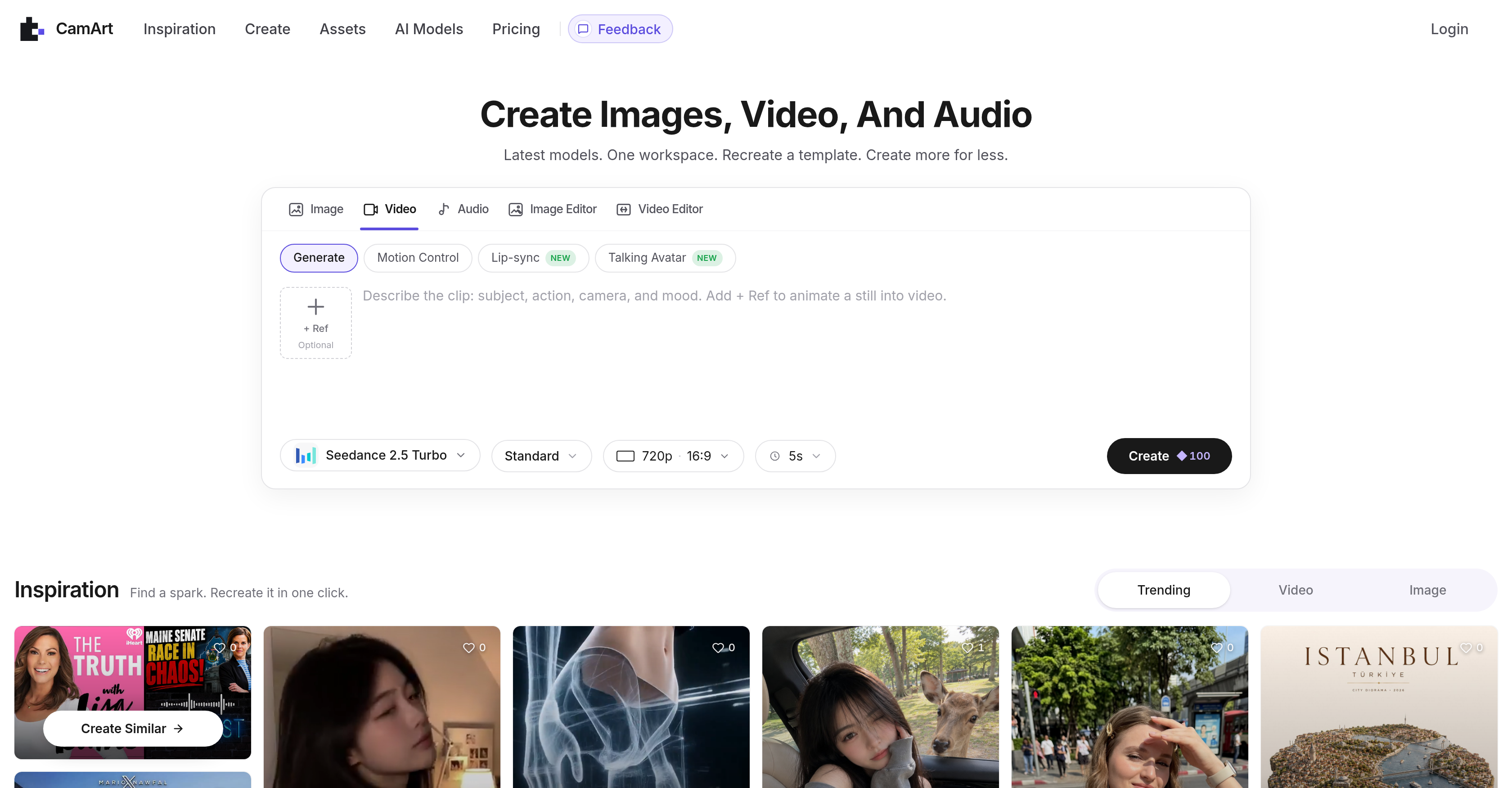
- Pick the right AI video generator or image model for each shot without switching platforms: open Seedance, Wan, Kling, Veo, Vidu, MiniMax, Runway, Grok, GPT Image, Nano Banana, Seedream, Qwen Image, FLUX, or Z Image, review sample outputs, and generate in the same place.
- Start from proven social formats instead of a blank prompt: choose Create Similar on any Inspiration feed example, from viral clips and fashion imagery to cinematic scenes, and get its prefilled prompt ready to edit.
- Finish a full multimedia project in one session: generate a still, animate it with image-to-video or text-to-video, add speech, and revise the clip without exporting between apps.
- Turn a single portrait into a speaking presenter: Talking Avatar animates an uploaded face with your voice file, and Lip-sync matches mouth movement in an existing video to your own MP3 or WAV track.
- Direct exactly how a scene moves: set start and end frames, transfer motion from a reference video onto a still image, and extend a clip past its final frame with consistent motion.
- Fix finished footage without regenerating from scratch: describe changes in plain language, relight scenes, swap backgrounds while the subject stays intact, replace authorized characters, or restyle the look while keeping the original motion.
- Deliver platform-ready video at the size and quality you need: set aspect ratio, resolution, and duration up to 30 seconds, then upscale clips to 4K on supported models.
- Complete the soundtrack next to your video: generate voiceovers with text-to-speech, compose instrumental music, and create specific sound effects in the same workspace.
- Control your budget before every render: each model shows its credit cost up front, the exact amount settles only after a successful result, and failed tasks are refunded.
- Publish and monetize with confidence: generations stay private until you choose to publish, uploads are not used to train CamArt models, and commercial use is included on every plan.
Pros & Cons
From the listing; not yet checked by our editors.
Pros
- Unified image, video, audio workspace
- Template-driven prompt reuse
- Inspiration feed with one-click recreation
- Start/end frame precise control
- Motion transfer from reference video
- Talking avatar with custom face
- Voice-driven photo animation
- Lip-sync from audio track
- Resolution upscaling within editor
- Natural-language video edits
- Visual restyle preserving motion
- Relighting without re-rendering
- Authorized character replacement protection
- Background replacement keeping subject
- Multiple model families selectable
- Model sample preview before generation
- Live credit cost display
- Asset management in same workspace
- Seamless media type switching
- Generate video from still image
- Extend clip beyond final frame
- Configurable aspect ratio, resolution
- 4K image upscaling
- Audio generation alongside visuals
- Text-to-speech in workspace
- Music creation without external tools
- Sound effect generation inline
- Natural-language image editing
- Restyle image without new session
- Replace character with authorized media
- Deepfake blocking for replacements
- Clip continuation via motion control
- Reference-based inputs for video
- Batch model switching without reload
- Integrated pricing lower than rivals
- Social media playbook templates
- Real-time preview of edits
- Customizable duration per model
- One-click create similar from feed
- Visible credit cost before generation
- Unified interface for all editors
- Template library with reproducible playbooks
- Motion-preserving restyle for videos
- Audio track lip-sync automation
- Dynamic background swapping
- 30s video generation support
- Model-specific resolution ranges
- Cross-media asset linking
- Real-time credit cost preview
- Integrated audio and visual editing
Cons
- Unpredictable credit costs
- Max video length 30 seconds
- Limited aspect ratio options
- No batch processing API
- No offline export capability
- Motion transfer requires matching perspective
- Avatar limited to one pair
- Asset versioning missing
- High latency switching models
- Background replacement artifacts edges
Alternatives to CamArt AI
Tools that share the most tags with CamArt AI.
- LoveGen AI
Transform text descriptions into high-quality images and videos instantly using advanced text-to-image and text-to-video models
Free trial · from $14.90/month
$14.90/month
Not yet checked
- Klyra AI
Transform scripts into cinematic videos instantly without editing skills using AI-powered filmmaking
Freemium · from $10/month
$10/month
Not yet checked
- Zorq AI
Make immediate, data-driven decisions with real-time data processing that instantly transforms incoming data into actionable insights
Paid · from $15/month
$15/month
Not yet checked
- Everlyn: Fastest Video and Image Generation
Create professional videos in 15 seconds instead of 5 minutes with advanced speed-up architecture
Paid · from $9.99/month
$9.99/month
Not yet checked
- Masonryv
Discover which AI model works best for your specific prompts by comparing outputs from multiple models displayed side-by-side on an infinite canvas
Freemium · from $10/month
$10/month
Not yet checked
- VoooAI
Generate high-quality, unique AI art and motion visuals instantly without any cost, using a free and unlimited platform with no registration required.
Freemium · from $8/month
$8/month
Not yet checked
Reviews
Rate this tool
Loading reviews...
Frequently asked questions
How do I turn a text prompt into a video clip with CamArt?
Open CamArt, select the Text to Video tool, enter your prompt, choose a video model (e.g., Seedance 2.5 Turbo), set the desired resolution, aspect ratio, and duration, review the credit cost shown, then click Create to generate the clip in the same workspace.
Can I use the Inspiration feed to reuse prompts for my own projects?
Yes. In the Inspiration feed you can click "Create Similar" on any template; CamArt copies the template’s pre‑filled prompt into your Create session so you can edit or generate from it directly.
What video models are available for generation and how do I choose one?
CamArt offers eight video generation models: Seedance, Wan, Kling, Veo, Vidu, MiniMax, Runway, and Grok. To choose one, open the AI Models panel, click a model to view sample outputs and its credit cost, then select it before starting a Text‑to‑Video or Image‑to‑Video job.
How does the Talking Avatar feature work and what files do I need to upload?
Talking Avatar requires you to upload a clear portrait image of the face and an audio file containing the voice (e.g., MP3 or WAV). CamArt then animates the photo to speak the uploaded audio using the facial landmarks extracted from the image.
Is it possible to lip‑sync a video using my own audio track?
Yes. Use the Lip‑sync tool: upload your own audio track (MP3/WAV) and select the target video; CamArt drives the mouth movements to match the speech while keeping the rest of the clip unchanged.
How can I extend a clip beyond its original end frame?
Select the Extend tool in the Video Editor, which continues the clip past its original last frame by generating additional frames based on the existing motion and context.
What options do I have for upscaling video resolution in CamArt?
CamArt’s Video Editor includes an Upscale option that can raise a clip’s resolution up to 4K, depending on the source model’s capabilities (e.g., Seedance 2.5 supports 480p‑4K, Kling 3.0 supports 720p‑4K).
Can I restyle a video while keeping the original motion?
Use the Restyle tool in the Video Editor. It applies a new visual style to the clip while preserving the original motion vectors, so the movement stays identical but the look changes.