

Unmerge
Rearrange a finished flyer, magazine cover, or product ad without rebuilding it: image layer separation splits a flat PNG, JPG, or WebP into up to 17 named raster layers, each with its own description, canvas position, and stacking order.
Listing not yet reviewed by our editors · How we check
Overview
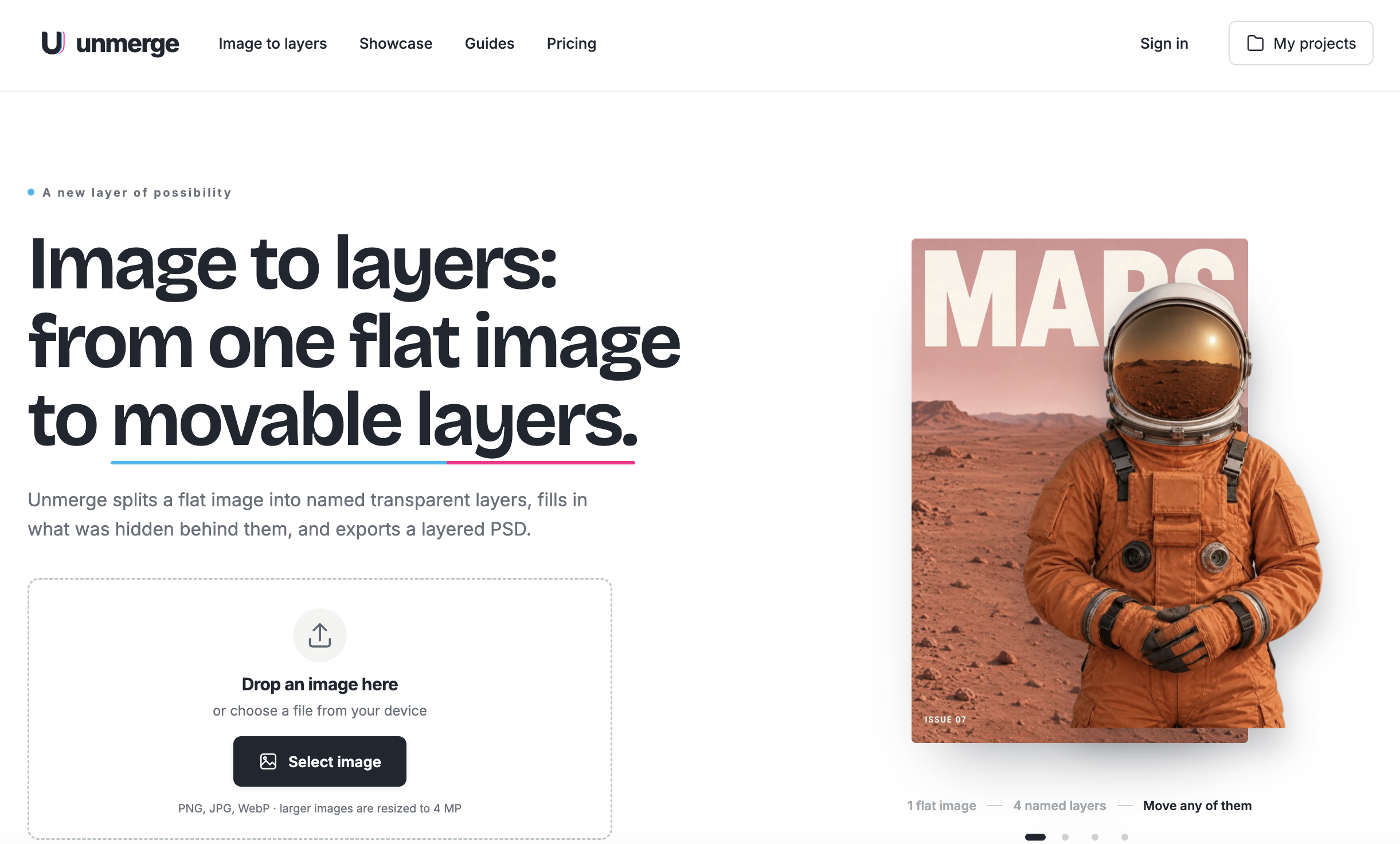
- Rearrange a finished flyer, magazine cover, or product ad without rebuilding it: image layer separation splits a flat PNG, JPG, or WebP into up to 17 named raster layers, each with its own description, canvas position, and stacking order.
- Move or delete any element and keep a complete scene: the model generates background fill for areas that were hidden, so check these invented fills and layer edges before final use.
- Keep every part of the image, not just one cutout: unlike background removal, Unmerge returns each detected element as a transparent layer plus a filled-in background.
- Test new layouts before you export: the browser-based layer workspace lets you select, hide, isolate, move, and inspect each layer directly on the canvas.
- Continue editing in the software you already use: export a layered PSD file, a ZIP of transparent PNG layers, a composite PNG, or any single layer as a PNG.
- Match output to your project: choose about 1 megapixel or 2K (about 4 megapixels) layer resolution when processing starts, from source images up to 10 MB and 4 megapixels.
- Judge the quality before you spend anything: sample images such as sticker sheets and flat lays, plus their downloads, are free, and one free low-resolution watermarked preview of your own image is available after email confirmation.
- Pay only for the image you need: a single split costs $2.90, or $3.90 at 2K, with no account required, or use credits charged per returned layer.
- Get your money back on a bad result: a split that returns no layers in three tries is refunded automatically, and you can request a one-time refund from the workspace if the layers fall short.
- Keep control of your files: uploaded images stay in your browser until you confirm or pay, single splits are deleted after 30 days, and account projects stay until you delete them.
- Know the scope before you start: text and shapes come back as raster pixels, not editable type or vectors, and original layered source files are not recovered.
Pros & Cons
From the listing; not yet checked by our editors.
Pros
- Named transparent raster layers
- Per-layer descriptions included
- Canvas positions retained
- Stacking order retained
- Hide layers on canvas
- Isolate individual layers
- Move elements independently
- Inspect generated hidden-area fills
- Fills obscured regions after moves
- Text returned on separate layers
- Sticker sheets split into items
- Up to 17 layers per split
- Supports PNG, JPG, WebP
- Files up to 10 MB
- Images up to 4 megapixels
- Choose 1K or 2K output
- Exports layered PSD
- Exports transparent-layer PNG ZIP
- Exports composite PNG
- Exports individual layer PNGs
- PSD retains layer names
- PSD retains visibility settings
- Free downloadable sample outputs
- Samples disclose model changes
- Demo edits stay browser-local
- Uploads stay local until confirmation
- Single-image purchase without account
- Pay per layer returned
- Automatic refunds after three zero-layer tries
- Self-service refund for unsatisfactory results
- Free watermarked preview available
- Single splits retained 30 days
- Account projects remain until deleted
- Reposition elements for flexible assets
- Works with posters and product shots
Cons
- Inputs capped at 10 MB
- Inputs capped at 4 megapixels
- Maximum 17 layers per split
- Text remains raster pixels
- Shapes remain raster pixels
- Hidden areas are generated
- Cannot recover original layered files
- Layer output limited to 1K or 2K
- Single splits retained 30 days
- Free previews are watermarked
Alternatives to Unmerge
Tools that share the most tags with Unmerge.
- Image2Layer
Edit any single element of a photo without affecting the rest by dissecting images into up to 10 individually editable layers.
Freemium · from $9/month
$9/month
Not yet checked
- Image to Layers AI
Turn any photo, product shot, portrait, or illustration into a complete layer stack in about sixty seconds instead of the hour-per-layer a manual mask demands, powered by AI image segmentation that processes the whole scene at once.
Free trial · from $9.90/unit
$9.90/unit
Not yet checked
- EzLayers
Skip hours of manual pen-tool clipping in Photoshop: automatic AI layer separation splits illustrations, photos, and UI mockups into isolated, editable layers in seconds.
Free trial · from $9.90/month
$9.90/month
Not yet checked
- LayerGrab
Edit a finished poster, banner or product photo without rebuilding it from scratch: the AI image layer splitter turns one flat image into up to 16 named transparent PNG layers (text, products, graphics, characters) in about a minute.
Free trial · from $12/month
$12/month
Not yet checked
- ImageLayered
Get professional image layer separation without Photoshop skills: automatic selection pulls subjects, text, objects, and backgrounds into their own transparent RGBA layers.
Paid · from $24.90/month
$24.90/month
Not yet checked
Reviews
Rate this tool
Loading reviews...
Frequently asked questions
What file formats and image sizes does Unmerge support?
Unmerge accepts PNG, JPG, and WebP images up to 10 MB and 4 megapixels. Layer output is raster, at about 1 megapixel by default or about 4 megapixels with the 2K option.
How do I separate an image into layers with Unmerge?
Choose a PNG, JPG, or WebP image, then start a separation in the workspace; you can also try a sample image. After processing, review and manage the generated layers in the workspace. Your own image is uploaded when you pay or confirm the processing.
Can I try Unmerge’s sample images and download their layers for free?
Yes. Unmerge’s sample images and their downloads are free to explore.
How many layers can Unmerge generate from one image?
A split can return at most 17 layers. Sample results shown on the site have 4 to 13 layers each; the number depends on the image and is chosen by the model.
Can I move, hide, or isolate layers in Unmerge’s workspace?
Yes. In the workspace, you can select, hide, isolate, move, and inspect layers.
Does Unmerge recover the original layers from a Photoshop file?
No. Unmerge creates new layers from the visible pixels in a flat image; it does not recover the original Photoshop file or its layers.
Are text layers from Unmerge editable as text?
No. Text is returned as raster pixels in separate layers, not editable type.
Can Unmerge create vector shapes from a flat image?
No. Shapes are returned as raster pixels, not editable vector objects.