
Overview
- Transform text into professional images in seconds using AI generation from simple prompts
- Replace any element or remove unwanted details instantly with text-based editing commands
- Extend images beyond their original borders with AI that invents matching content seamlessly
- Create complete storyboards from detailed shot descriptions for pre-production planning
- Jumpstart creative projects with preset styles that deliver quality results without complex prompts
- Collaborate in real-time with team members through shared canvas rooms for joint creation
Pros & Cons
Pros
- Collaborative creation of visuals
- Image generation through text prompts
- Easy image editing
- Element replacement via text
- Image extension capabilities
- Background change functionality
- Storyboard generation from text
- Join existing canvas rooms
- Start with new empty canvas
- Preset image styles
- Privacy terms provided
- Clear terms of service
- Career opportunities
- Ready access to images
- Well-organized documentation
- Supports simple text commands
- Erase and replace feature
Cons
- Limited style presets
- No standalone mobile app
- Lacks image accuracy control
- Inefficient collaborating tool
- Limited text command options
- No undo actions feature
- Limited privacy customizations
- Lacks version history
- No direct export option
Reviews
Rate this tool
Loading reviews...
❓ Frequently Asked Questions
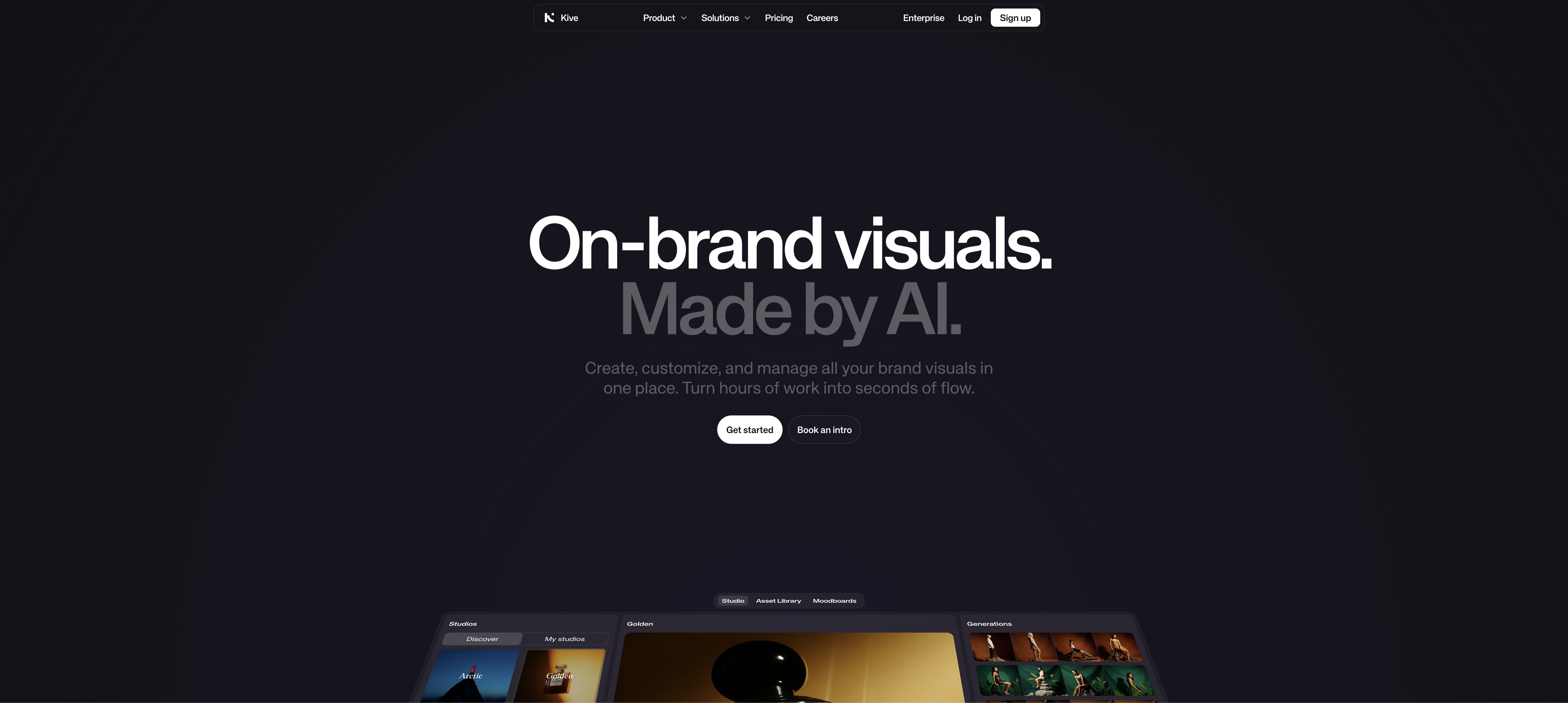
Kive AI Canvas is a tool that allows users to collaboratively create visuals with the help of text prompts. It empowers users to generate, create and edit images, change backgrounds, replace elements, and even extend images beyond their borders. Preset styles are readily available to hasten the creation process. Kive AI Canvas also supports the creation of storyboards from detailed text descriptions of a shot.
Yes, Kive AI Canvas allows you to create your own visuals from scratch. There's an option to start with a new empty canvas.
Kive AI Canvas generates images using the text prompts provided by the user. When a specific text prompt is written, Kive AI Canvas applies advanced AI to generate an image in response to that prompt within seconds.
Preset styles in Kive AI Canvas are pre-defined styles that users can employ to easily create quality images. These styles help in producing images in various styles without needing to create complex prompts.
Yes, you can replace image elements in Kive AI Canvas. The platform provides the capability to edit the contents of an image with a simple text. Unwanted elements can be removed, and new details can be inserted.
Kive AI Canvas lets you extend images beyond their borders by inventing new content that seamlessly matches with the existing image. This is done through a specific feature that allows you to extend the current view of the image.
Yes, there is a feature to change the background of an image in Kive AI Canvas. You have the option to erase the existing background and insert something else.
Yes, Kive AI Canvas lets you create storyboards. You can generate the storyboards from a detailed text description of the shot.
Joining an ongoing canvas in Kive AI Canvas is easy. The website features several ongoing canvas rooms and you just need to click on the 'join room' button to partake in any of them.
You can start a new canvas on Kive AI Canvas by selecting the 'create empty canvas' option on the platform. This gives you a blank canvas to start creating your visuals from scratch.
Yes, Kive AI Canvas provides a privacy policy which can be accessed from the 'Privacy' link at the bottom of their website.
You can find the terms of service for Kive AI Canvas by clicking on the 'Terms of Service' link at the bottom of their website.
Yes, there are career opportunities at Kive AI Canvas. Interested individuals can find more information and apply for the available roles by visiting the 'Careers' page on their website.
Images generated by Kive AI Canvas can be found by clicking on the 'Images' link at the bottom of their website.
There isn't any specific information about color policies or guidelines on Kive AI Canvas but users can visit the 'Colors' link at the bottom of the website for related resources.
The Kive AI Canvas documentation can be found by clicking on the 'Documentation' link at the bottom of their website. This documentation provides more details about how to use the platform effectively.
Yes, Kive AI Canvas is a multiplayer AI creation tool. Users can join others in shared rooms for collaborative creation, or start their own project.
Resources available for better utilizing Kive AI Canvas include preset styles, image element replacement features, image extension capabilities, background swap functionality, and storyboard creation tools. User support is also available through their documentation, terms of service, and privacy policies.
Kive AI Canvas is capable of generating images from text prompts in seconds, providing users with a quick and efficient creation process.
Yes, on Kive AI Canvas, you can erase specific parts of an image by simply using a text command. You just erase and write what you want in the erased area, and watch it appear, matching the style of the image.
Pricing
Pricing model
Freemium
Paid options from
$12/month
Billing frequency
Monthly
Related Videos
Unleash Your Creative Vision with Kive AI's Mind-Blowing AI Canvas
Geryah Dingle Music•659 views•Apr 17, 2023