
Cupidly: AI Dating Keyboard
Answer a match in seconds without leaving the chat: switch to the Cupidly keyboard, screenshot the conversation, and tap a ready-made dating reply or opener to send. Screenshots taken just before opening the keyboard load automatically.
Listing not yet reviewed by our editors · How we check
Overview
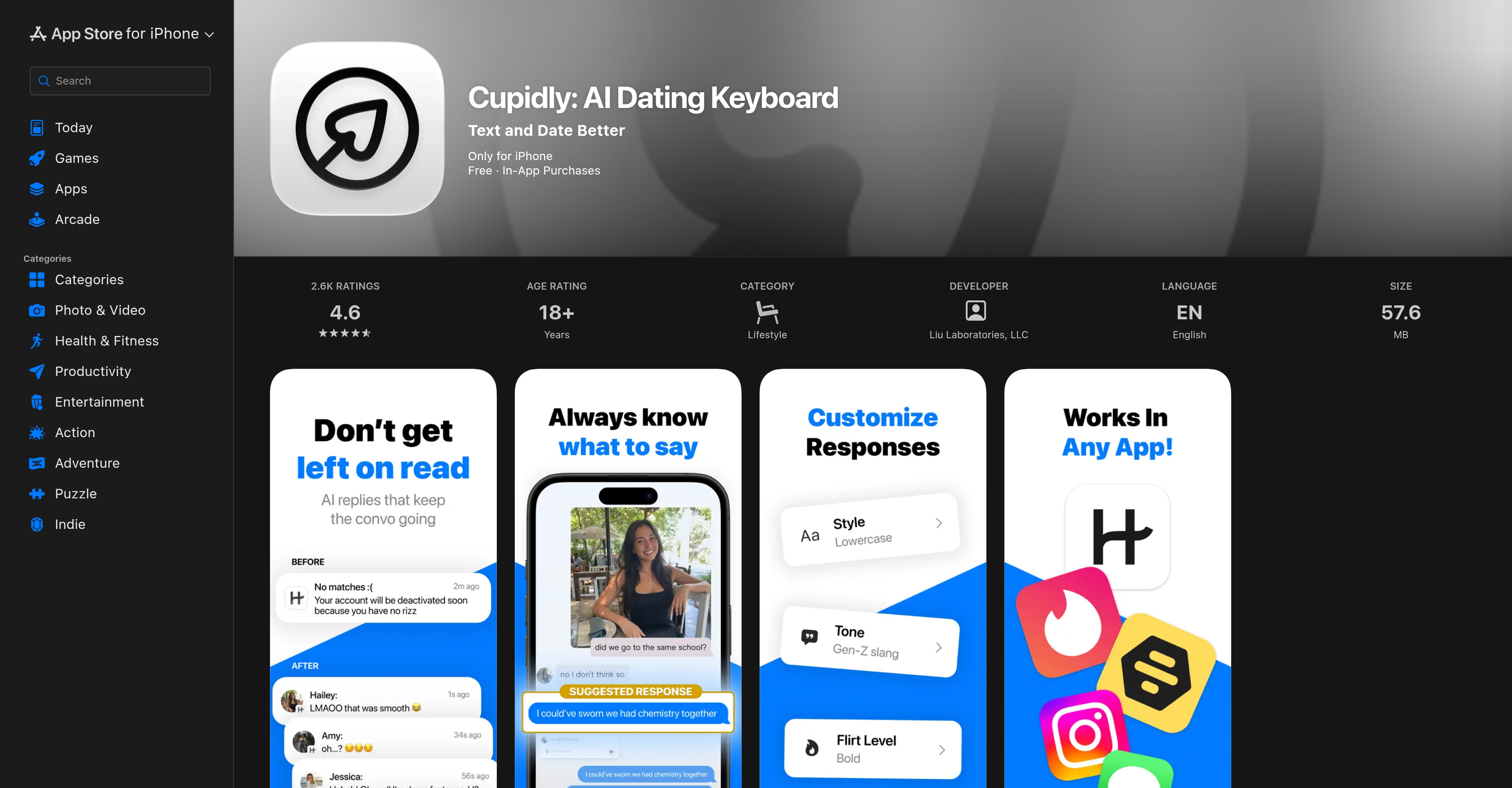
- Answer a match in seconds without leaving the chat: switch to the Cupidly keyboard, screenshot the conversation, and tap a ready-made dating reply or opener to send. Screenshots taken just before opening the keyboard load automatically.
- Send messages that sound like you: the About Me section adds your interests, location, and personal details to every generated reply, so your dating conversations reflect who you are.
- Set the right tone for each match: build and name custom approaches for humor, formality, or flirtiness, then reuse, reorder, disable, or switch them from the keyboard while the chat stays open.
- Keep replies as short or as long as the moment calls for: advanced settings fix exact minimum and maximum reply lengths, or leave length unrestricted.
- Use one texting assistant across every conversation: the keyboard works in dating apps, texting apps, and other chat apps, so you never copy text between apps.
- Type without your keyboard standing out: Cupidly matches the native iPhone keyboard and follows your light or dark mode setting.
- Learn every feature without reading a manual: onboarding, an interactive walkthrough, and an in-app usage guide take you through setup, and quests track your progress inside the keyboard and unlock alternative home-screen icons.
- Build a consistent messaging habit: a daily streak and monthly activity calendar show how regularly you keep conversations going.
- Test the dating message generator before paying: a free trial includes every suggestion feature, followed by monthly, quarterly, or annual subscription plans.
Pros & Cons
From the listing; not yet checked by our editors.
Pros
- Integrated iOS custom keyboard
- Autoloads latest screenshot
- Saves multiple style approaches
- Reorder/disable saved approaches
- Switch approaches directly from keyboard
- Personal About Me facts integration
- Precise reply length limits
- Exact length typing option
- Native iPhone keyboard appearance
- Light and dark mode support
- Interactive walkthrough onboarding
- Questbased feature tutorial
- Unlockable homescreen icons
- Streak tracking gamification
- Monthly activity calendar
- Inapp feedback submission
- Instant keyboard transitions
- Steady keyboard height
- Crossapp messaging compatibility
- Minimal app footprint (57MB)
- Customizable keyboard style pill
- Plus button clears input field
- Screenshottriggered suggestion loading
- Saved approaches persist across sessions
- Onthefly approach editing
- Contextual suggestions per conversation
- Dark mode adaptive UI
- Keyboard mimics system keys
- Quicktap suggestion selection
- Personalized tone control
- Advanced customization tab
- Multiapproach organization screen
- Realtime suggestion refresh
- Inline usage guide access
- Quest progress displayed in keyboard
- Homescreen icon personalization
- Privacyfocused screenshot handling
- Optimized for iOS15+
- Supports iPhone and iPad
- Reduced latency suggestion generation
- Seamless keyboard height adjustment
- Autodetects app context
- No need to exit chat
- Keyboard UI matches system fonts
Cons
- Requires manual screenshot input
- Subscription required after trial
- iOS exclusive, no Android
- Screenshots sent to server
- No offline suggestion generation
- Only English language support
- Cannot use alongside other keyboards
- Lacks cloud sync for approaches
- Keyboard adds noticeable latency
- Gamified quests may interrupt typing
Alternatives to Cupidly: AI Dating Keyboard
Tools that share the most tags with Cupidly: AI Dating Keyboard.
- Gigachad AI
Answer matches without leaving the chat: the Gigachad AI keyboard generates multiple dating reply suggestions based on the current conversation, right inside Tinder, Hinge, and Bumble.
Paid · from $6.99
$6.99
Not yet checked
- FlirteR
Never get stuck on what to text back: tap the sparkle button and get three AI reply suggestions for the message you're answering, right above your keys.
Not listed
Not listed
Not yet checked
- Wingman Rizz AI
Reply to matches and friends without leaving the chat: the Wingman AI keyboard works in iMessage, Instagram, WhatsApp, Snapchat, Hinge, Tinder, TikTok, and any app with a text field, so one reply workflow follows you everywhere with no separate integrations or chat histories.
Paid · from $6.99
$6.99
Not yet checked
Reviews
Rate this tool
Loading reviews...
Frequently asked questions
How does Cupidly generate messages from a screenshot?
Cupidly analyzes the screenshot you capture, extracts the visible chat text, and feeds that context into its on‑device AI model (which calls cloud‑based language services) to produce openers or replies that are relevant to the conversation.
Can I use Cupidly in any messaging app or only dating apps?
Cupidly works in any iOS messaging interface – you can switch to the Cupidly keyboard, take a screenshot, and get suggestions in dating apps, texting apps, or any other chat app.
What’s the step‑by‑step setup for the Cupidly keyboard on iPhone?
1 Install Cupidly from the App Store. 2 Open iOS Settings → General → Keyboard → Keyboards → Add New Keyboard and select “Cupidly”. 3 Enable “Allow Full Access”. 4 Launch the Cupidly app and complete the interactive walkthrough. 5 When you want to write a message, open the target app, switch to the Cupidly keyboard, take a screenshot of the conversation, and choose a generated reply from the keyboard UI.
What does the “Customize Approach” feature actually do?
The “Customize Approach” screen lets you define a named writing style – tone, humor level, formality, etc. – and any message generated while that approach is active follows the defined style. Saved approaches can be reused later.
How can I save, reorder, or delete my custom approaches in Cupidly?
In the Customize Approach screen you can tap “Save” to store a new approach, drag handles to reorder the list, swipe left to delete, toggle the on/off switch to disable, and from the keyboard itself tap the approach pill or banner to switch between them without leaving the chat.
Does Cupidly store my screenshots or conversation data anywhere?
IDK
How do I set minimum and maximum reply lengths in Cupidly?
In the Advanced settings you can set a minimum and maximum reply length. Tap the numeric field to type an exact value or leave it on “Any” for unrestricted length.
Is there a dark mode for the Cupidly keyboard?
Yes. The keyboard automatically adapts to iOS light or dark appearance settings.