ScreenApp v6.20.12
Overview
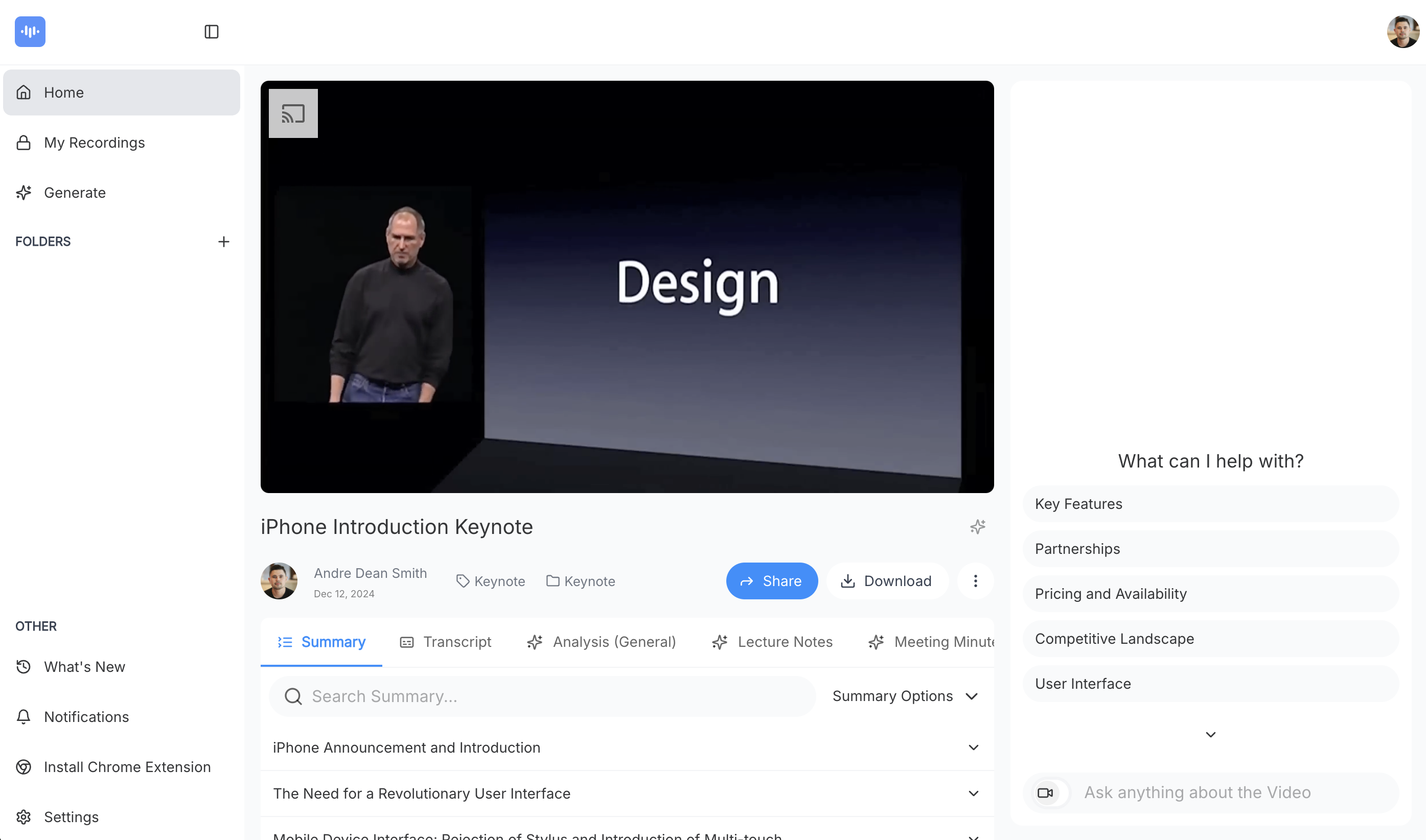
- Instantly capture any screen activity without downloads using browser-based recording from any device
- Transform recordings into searchable documents with GPT AI transcription that converts spoken content to text
- Extract key insights automatically from meetings and tutorials with AI-powered summarization
- Safeguard and share recordings effortlessly through secure cloud backup with generated links
- Enable team collaboration by allowing permission-based editing in shared workspace from any device
- Record unlimited sessions with flexible capture of full screen, specific windows, or browser tabs
Pros & Cons
Pros
- Free online tool
- Cross-platform support
- Select recording area
- Include webcam footage
- Secure storage
- Collaboration-friendly
- Download recordings
- Cloud backup
- Shareable links
- Used by major brands
- Browser-based
- Efficient review of content
- Facilitates knowledge transfer
- Intuitive interface
- Multiple use-cases
- Supports Windows/MAC/Ubuntu
- Records with or without audio
- High customer trust
- Transcribes videos to text
- Local implementation
- No software downloads required
- Quick video downloads
- Webcam and screen recording
- Provides insights
- Customizable platform
- Stores recordings in cloud
- Creates shareable links
- Transcribes spoken words
- Applicable to various content types
- Quality business video sharing
- Personalize video with webcam
- ScreenApp Recording Plugin
- Live chat support
- Extracts valuable knowledge
- Multi-language support
- Instant recording
- High user ratings
- No watermark
- Lag free recording
- Can record PC, tab, or window
- Integrable into websites or apps
- API and Plugin availability
- Recordings accessible from any device
- Supports Google Chrome, Opera, Firefox
- Secure business video implementation
- No installation
- Written record creation
- Allows video accessibility later
- High-quality business videos sharing
- Ideal for training sessions, tech tutorials
Cons
- Limited to online use
- No local storage option
- Dependent on internet speed
- Potential privacy issues
- No multi-language transcription
- No offline version
- Limited to certain browsers
- May not record accurately
- Specific OS needed
Reviews
Rate this tool
Loading reviews...
❓ Frequently Asked Questions
ScreenApp is a free online screen recording tool that specializes in capturing screen activity and transcribing it. It enables recording from any device, application window, or browser tab with an option to simultaneously capture webcam footage. The standout feature of ScreenApp is its advanced GPT AI technology that powers the transcription capability, effectively converting video recordings into written documents. It also provides users the option to safely store and share the recorded videos.
ScreenApp supports recording on multiple platforms, including Windows, MAC, and Ubuntu.
Yes, ScreenApp allows for recording both video and audio simultaneously. It can capture screen activity while also documenting any audio that is occurring in the selected recording area. This includes audio from system alerts, ongoing conversations, and even music.
Yes, one of ScreenApp’s features is its ability to capture webcam footage. The platform allows users to either record both their screens and webcam footage or just the webcam, creating a versatile and personalized recording experience.
ScreenApp's transcription feature leverages GPT AI technology. This technology converts spoken content in the video recordings into written text. This ensures a written record of all information conveyed during a screen recording session, providing easy review and search capabilities through the text.
ScreenApp places a strong emphasis on security. It ensures this by providing users with the option to securely store their recordings, while also offering them the ability to share these recordings with colleagues. Further details regarding the specific encryption, firewall, and access controls in place are not disclosed on their website.
Yes, recordings on ScreenApp can be edited by collaborators. With the owner's permission, anyone can access the team space from any device and edit the recordings.
ScreenApp is designed to cater to varied use cases. It's primarily used for tech tutorials, training sessions, meetings, and presentations. Users can record and share their screen activity, which can then be transcribed into text for easy review and knowledge transfer.
Yes, ScreenApp deploys GPT AI technology. It uses this advanced technology to transcribe, summarize, and simplify recorded content, and to gather key insights from the same.
ScreenApp provides flexibility in recording options. Users can choose to record their entire screen, a specific application window, or a browser tab. This provides users with the control to focus their recording on a specific area if they wish.
ScreenApp's cloud backup feature is designed for safeguarding and sharing recordings. The feature allows the recordings to be backed up directly to the cloud, ensuring their safety and providing easy shareability through generated links.
ScreenApp has gained the trust of high-profile brands through its intuitive interface, reliable service, AI-powered functionality, and its commitment to secure storage and sharing of recordings. Brands such as Nike, Deloitte, Tesla, and Foodpanda rely on ScreenApp for screen recording and transcription needs.
There are no restrictions on the number of recordings that you can make with ScreenApp. It allows unlimited recordings of screen time with or without webcam, desktop, microphone, and system audio.
You do not have to download ScreenApp to use it. As a free online tool, ScreenApp allows instant capture of your screen activity, directly from your browser without the need for any downloads or installations.
Yes, ScreenApp is available in various languages. There are several language versions of their website to support a global user base.
Yes, ScreenApp can be used without installing any software. It’s a web-based application, not software that needs to be installed onto a device. Therefore, users can simply access the ScreenApp website and start recording straight away.
The recording process in ScreenApp consists of a few simple steps. After starting the ScreenApp, you select your video and audio options, then choose a window, tab or screen to record. Once you've made your selection, simply hit the 'start recording' button. When you want to stop, just hit the stop button.
Yes, ScreenApp can be used to record meetings. It captures screen activity, audio, and webcam footage, perfectly serving the need for meeting documentation. Furthermore, it transcribes the contents of the meeting, providing a written record for easy review and reference.
Pricing
Pricing model
Freemium
Paid options from
$14/month
Billing frequency
Monthly