

DescribeThat
Overview
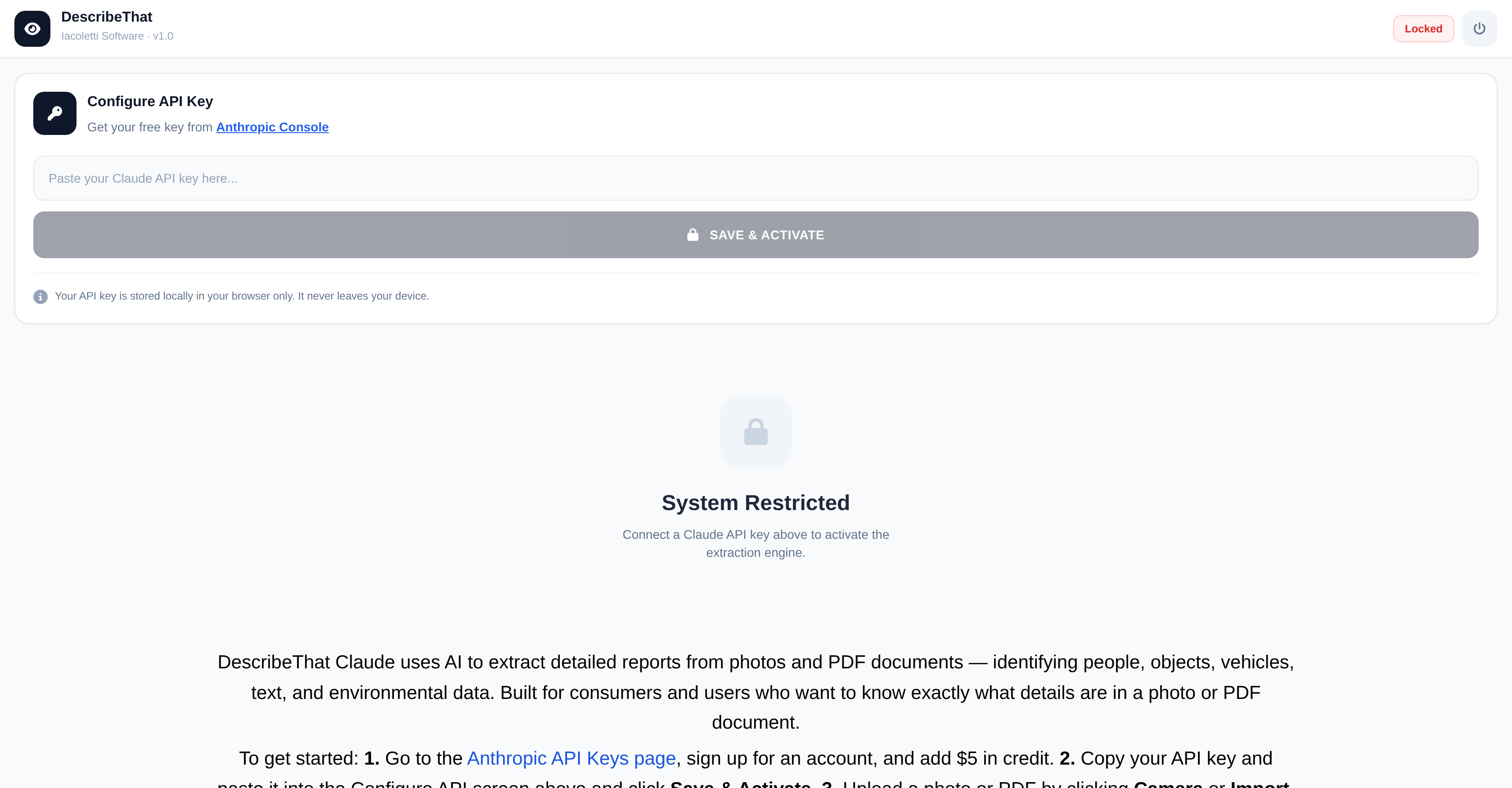
- Get comprehensive reports from images and PDFs by identifying people, objects, vehicles, text, and environmental data with AI-powered analysis.
- Review all extracted details in a clear, organized format using the centralized Intelligence Dashboard.
- Export your final analysis for sharing or archiving by saving reports directly as text files or PDF documents.
- Ensure complete data privacy as your files and API key are never stored or accessed by the application, using a Bring Your Own Key (BYOK) model.
- Quickly analyze new files without manual data clearing using the one-click 'Clear Staged Evidence' function.
Pros & Cons
Pros
- Extracts reports from photos
- Extracts reports from PDFs
- Recognizes people
- Identifies objects
- Detects vehicles
- Text recognition
- Environment data interpretation
- Anthropic API key integration
- BYOK Architecture
- Data encrypted in transit
- Privacy Focused
- Intelligence Dashboard
- Data privacy
- Generates textual reports
- Generates PDF reports
- User-friendly manual
- Clear Staged Evidence function
- Can import files directly
- Flexible file upload options
- End User License Agreement
- Terms of Service adherence
- Privacy Policy adherence
- No API credential storage
- No transmission of user data
Cons
- No mobile app version
- Limited file upload options
- User manual necessary
- Requires API key setup
- No multi-file analysis
- Report saving limited formats
- No real-time analysis
- No native cloud storage
- No automatic file clearance
- No offline functionality
Reviews
Rate this tool
Loading reviews...
❓ Frequently Asked Questions
DescribeThat 1.0 is an Artificial Intelligence tool developed by Iacoletti Software. It enables the extraction of detailed reports from photos and PDF documents by identifying various elements such as people, objects, vehicles, text, and environmental data.
The core functionality of DescribeThat involves processing photos and PDF documents to extract detailed information. It identifies multiple elements like people, objects, vehicles, text, and environmental data. Once processed, it generates a detailed report which can be seen through its 'Intelligence Dashboard'.
DescribeThat uses cutting-edge AI technology to identify people, objects, vehicles, and environmental data. However, the specific methodology or algorithms of how it identifies these elements is not outlined on their website.
To sign up for an account to use DescribeThat, go to the Anthropic API Keys page, sign up for an account, and add $5 in credit.
Setting up an API key for DescribeThat involves going to the Anthropic API Keys page, signing up for an account, and adding a $5 credit. Once you've done this, you can copy your API key and paste it into the Configure API screen on DescribeThat and click 'Save & Activate'.
You can upload photos or PDF files for analysis in DescribeThat by clicking on the 'Camera' or 'Import' options. Once you have chosen the file you want to analyze, you can start the analysis process by clicking 'Begin Extraction'.
The extraction process in DescribeThat consists of uploading a photo or a PDF file and then clicking 'Begin Extraction'. The AI then starts processing the uploaded material, identifying various elements like people, objects, vehicles, text, and environmental data.
You can review the report generated by DescribeThat on the 'Intelligence Dashboard'. This panel provides a comprehensive report of the analysis done by the AI on the uploaded photo or PDF.
The report generated by DescribeThat can be saved as Text or PDF. You simply have to click the document icons to save your report in the desired format.
If you want to scan another file with DescribeThat, you should first click 'Clear Staged Evidence'. This will clear the current analysis, enabling you to upload and analyze another file.
Yes, DescribeThat comes with a User Manual. This manual provides full instructions on the setup and usage of the tool.
DescribeThat adheres to End User License Agreement, Terms of Service, and Privacy Policy, as stated in their User Manual. Users must agree to these policies before starting to use the software.
The AI in DescribeThat works by processing photos and PDF documents uploaded by the user. It identifies various elements like people, objects, vehicles, text, and environmental data, extracts these details, and generates a comprehensible report.
The 'Intelligence Dashboard' in DescribeThat is a feature that allows the user to review the detailed report generated by the AI after it has processed the uploaded material. It presents the data in an easily understood format, providing the user with precise and detailed results.
DescribeThat processes PDF documents by extracting the embedded data. This includes text, images, and any identifiable objects or environmental information within them. It then generates a detailed report of this analysis.
The text extraction feature in DescribeThat works by scanning the uploaded photos or PDF documents and identifying and extracting all relevant textual data. The AI then includes this extracted text in the final report.
The procedure of object identification in DescribeThat involves the AI scanning the uploaded data and identifying various objects within the material. This information is then included in the detailed report.
DescribeThat manages information retrieval from documents by scanning the uploaded file, identifying and extracting relevant data, and then presenting this information in a detailed report that's accessible via the 'Intelligence Dashboard'.
Yes, DescribeThat can analyze environmental data present in the documents. It identifies and extracts all pertinent environmental data from the uploaded files as part of its extraction process.
DescribeThat's API Integration works by allowing users to integrate the functionality of DescribeThat into their own software or system using an API key. This key is generated once a user signs up for an account and can be entered into the Configuration API screen to activate it.
DescribeThat 1.0 uses its artificial intelligence capabilities to analyze the uploaded photos and PDF documents. It efficient algorithms allow it to identify and extract various elements, creating accurate and comprehensive reports.
DescribeThat 1.0 can identify a variety of elements including people, objects, vehicles, text, and environmental data.
DescribeThat 1.0 has a thorough analysis capability that extracts intricate details from photos and PDFs. This feature makes it useful for users who require comprehensive information from their files.
To use DescribeThat 1.0, you need to first sign up for an account on the Anthropic API Keys page, add credit to it, then copy and paste your API key into the Configure API screen and click Save & Activate. After this, you can start uploading photos or PDFs for analysis.
Anthropic API Keys are used for activating DescribeThat 1.0. They serve as an authentication measure that enables the secure interaction between the user's data and the AI platform.
The API key is activated in DescribeThat 1.0 by pasting it into the Configure API screen and clicking Save & Activate.
You can upload files for analysis in DescribeThat 1.0 by clicking on the Camera or Import option.
Once the extraction process in DescribeThat 1.0 begins, the AI commences analyzing the files, identifying various elements, and producing a comprehensive report.
The Intelligence Dashboard in DescribeThat 1.0 is the feature where users can review the reports generated from the analysis of their files.
In DescribeThat 1.0, reports can be saved in text or PDF format.
'Clear Staged Evidence' in DescribeThat 1.0 is a function that enables you to erase the current files or data in preparation for scanning or analyzing a new file.
Yes, a User Manual is available for DescribeThat 1.0 providing detailed instructions on the setup and usage of the tool.
The End User License Agreement, Terms of Service, and Privacy Policy in DescribeThat 1.0 are legal agreements outlining the terms, conditions, and policies users must adhere to when using the software. These terms are included in the User Manual.
BYOK (Bring Your Own Key) architecture is a data privacy model where the application does not hold, transmit, or access the user's API credentials or analyzed content. Instead, all data transfers occur between the user's browser and Anthropic, encrypting the data during transit with the user's API key. This architecture model is used in DescribeThat 1.0 to maximize user data privacy.
Yes, in DescribeThat 1.0, files are encrypted during transit between the user's browser and Anthropic with the user's API key.
No, DescribeThat 1.0 does not store your API credentials or the content you analyze with respect to its BYOK architecture principle. The software guarantees data privacy by performing all data transfers between your browser and Anthropic without storing or accessing your API credentials or analyzed content.
Your privacy is protected in DescribeThat 1.0 through the use of BYOK (Bring Your Own Key) architecture. It's designed in such a way that the application never holds, transmits, or has access to your API credentials or the content you analyze, providing an additional layer of security and privacy.
In DescribeThat 1.0, your API key is used to encrypt the data during transit between your browser and Anthropic.
After the extraction process in DescribeThat 1.0, the data is displayed for your review in the Intelligence Dashboard. The application does not hold, store, transmit, or have access to this data once it's been analyzed.
Pricing
Pricing model
No Pricing